Learn Math and Physics through Simulations with AI
Create beautiful 3D simulations using AI,
no programming experience required.

How the Simulation Works
GPUSims runs simulations using WebGPU.
WebGPU is supported by modern browsers like Chrome, Safari, and Edge.
Because WebGPU programming can be complex, GPUSims simplifies the process into these steps:
- An AI generates a simulation blueprint, called a schema.
- GPUSims builds a shader skeleton (the program running on the GPU) from this schema.
- The AI completes the shader implementation.
You do not need to understand the contents of schemas or shaders.
The AI focuses on formulating math equations and writing the code.
GPUSims handles all the complexities of WebGPU in the background.
Separating the math from the WebGPU mechanics is what makes these advanced simulations possible.
How to Use GPUSims
Watch this short YouTube tutorial to see how it works.
Using the Simulation Page
- Click Restart to replay the simulation.
- Click Edit Code to go back to the schema and shader editors.
- Click Capture Image to take a screenshot of the canvas and download it.
- Click Thumbnail to select an image for the Gallery.
- Drag with the left mouse button to rotate the 3D view.
- Drag with the right mouse button to move the viewing area.

AI Models Tested with GPUSims
I primarily use Gemini 3.1 Pro (Extended) and ChatGPT-5.6 Sol.
I use Opus 4.8 High for advanced simulations.
In my tests, free AI models often fail to run simulations correctly.
Prompting the AI
As shown in the video, using GPUSims is mostly just clicking and copying.
The only step requiring your input is telling the AI what to build.
Here is the prompt used in the tutorial video:
prompt
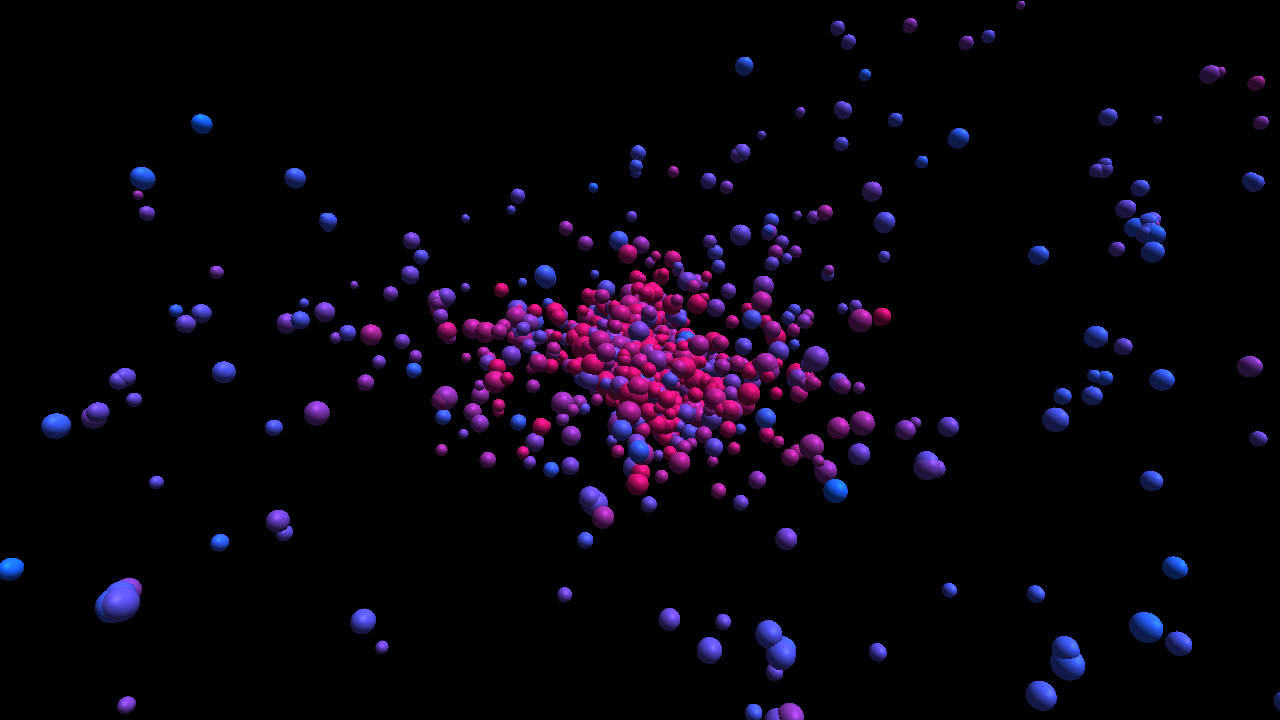
Create a schema for an N-body simulation.
You can also provide more detailed instructions:
prompt
Create a simulation schema for multiple spheres undergoing elastic collisions within a cube.
Include sliders to adjust the coefficient of restitution and gravity.
Instructing the AI to display calculation results on the screen makes it easier to verify the simulation.
prompt
Display the kinetic energy, the potential energy, and the sum of both.
For complex setups, asking the AI to output intermediate results to a separate canvas helps with debugging.
prompt
Output the intermediate calculation results to an additional canvas.
Basic Shapes
You can use these basic shapes to render your simulations:
- point
- line
- sphere
- tube
- cylinder
- arrow
Here is how to request specific shapes:
prompt
Create a schema for a pendulum simulation.
Represent the pendulum's string as a tube and the weight as a sphere,
and draw the forces acting on the pendulum as arrows.
The AI can also render custom curved surfaces.
prompt
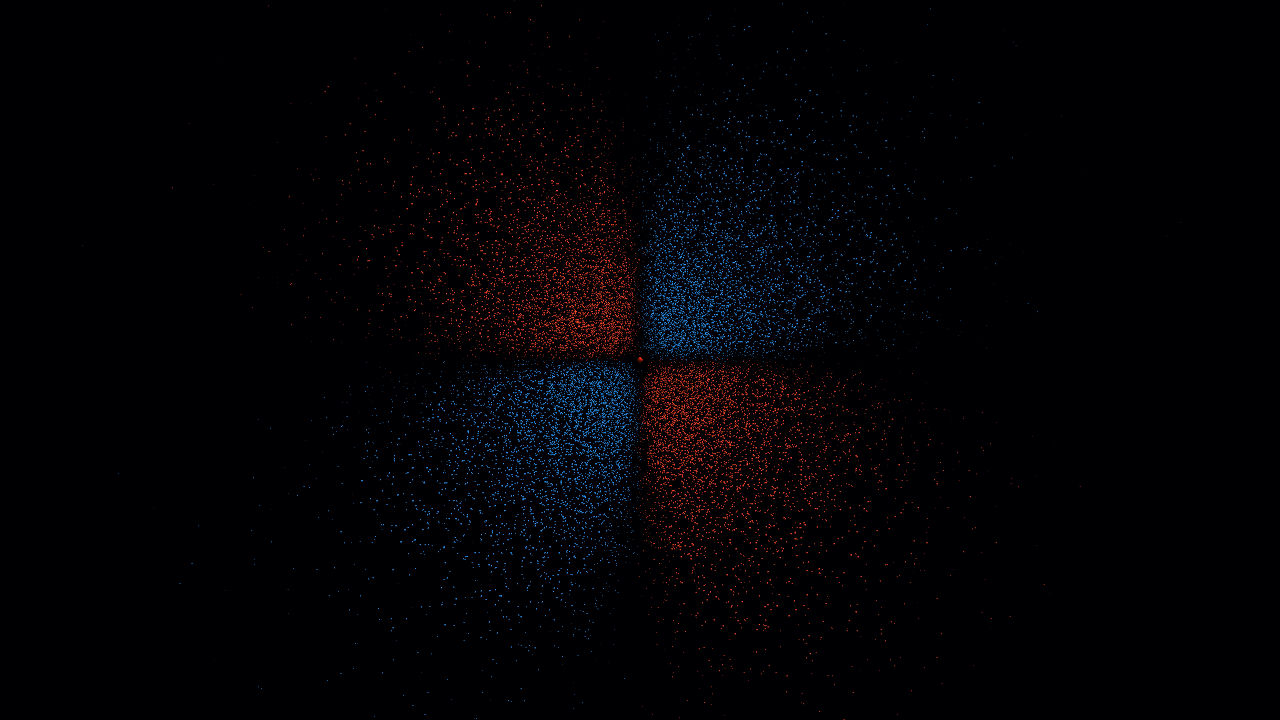
Create a schema to render a complex exponential function.
Troubleshooting Errors
If GPUSims displays an error dialog,
you can ask the AI to fix it:
- Click Copy Error Message.
- Paste the message into the AI chat.
- Ask the AI to fix the error.
prompt
Fix this error.
Expected ':' but found '.' at index 319

Verifying Calculations
A simulation might run without errors but still be mathematically incorrect.
Here is how to check your values with the AI:
- Click the
 button to copy your parameters and results.
 - Paste them into the AI chat.
- Ask the AI to verify if the calculations are correct.

Verifying the Visuals
Even if a simulation looks realistic, it might be inaccurate. Use the AI to check the canvas image:
- Click Capture Image to download the canvas as an image file.
- Upload the image file to the AI chat.
- Ask the AI to verify the visual accuracy.
System Prompt
Below is the system prompt used to guide the AI.
System Prompt
The AI uses these rules to structure your simulation schemas.
Simulation & Prompt Examples
Giving the AI clear, precise prompts is the key to a successful simulation.
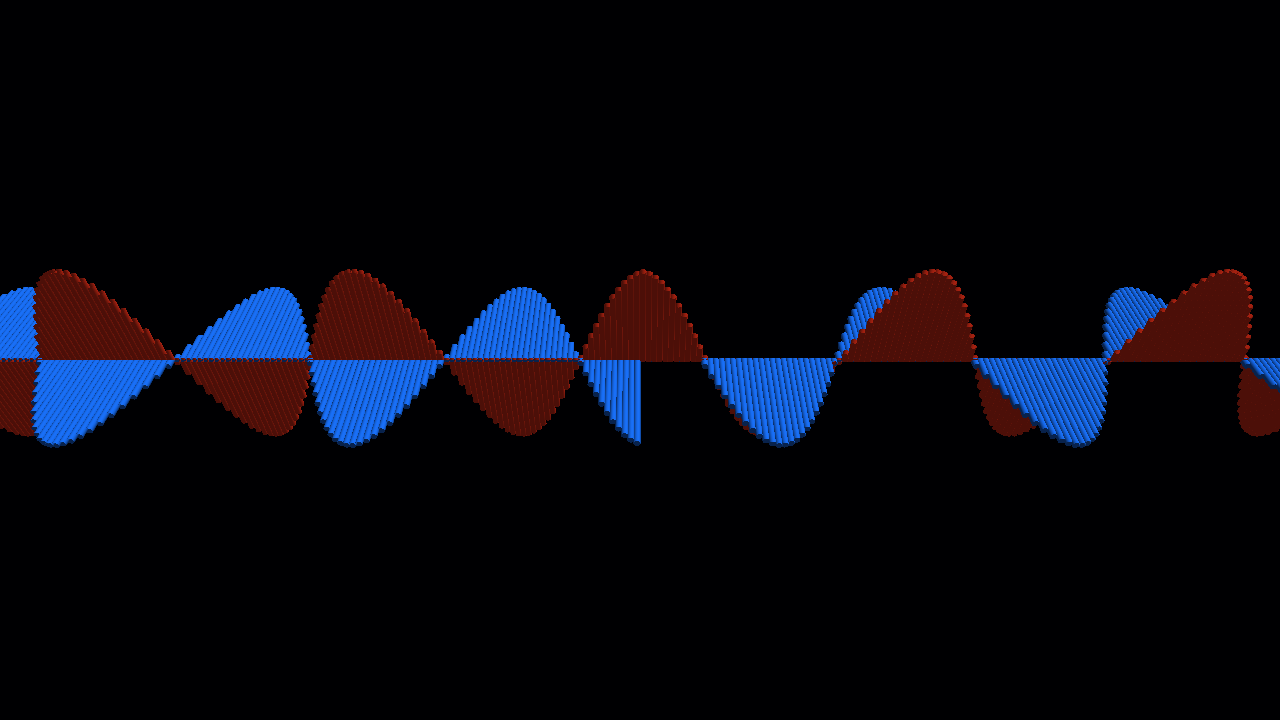
Set the number of points on the number line to 1024.
An electric field defined by a sine function is forcibly applied at the center of the number line.
The electric and magnetic fields are visualized using tubes, with the radius and length of the tube adjusted for visibility.
Make the following parameters adjustable via sliders:
* The amplitude and period of the sine function at the center.
* The radius and length of the tubes
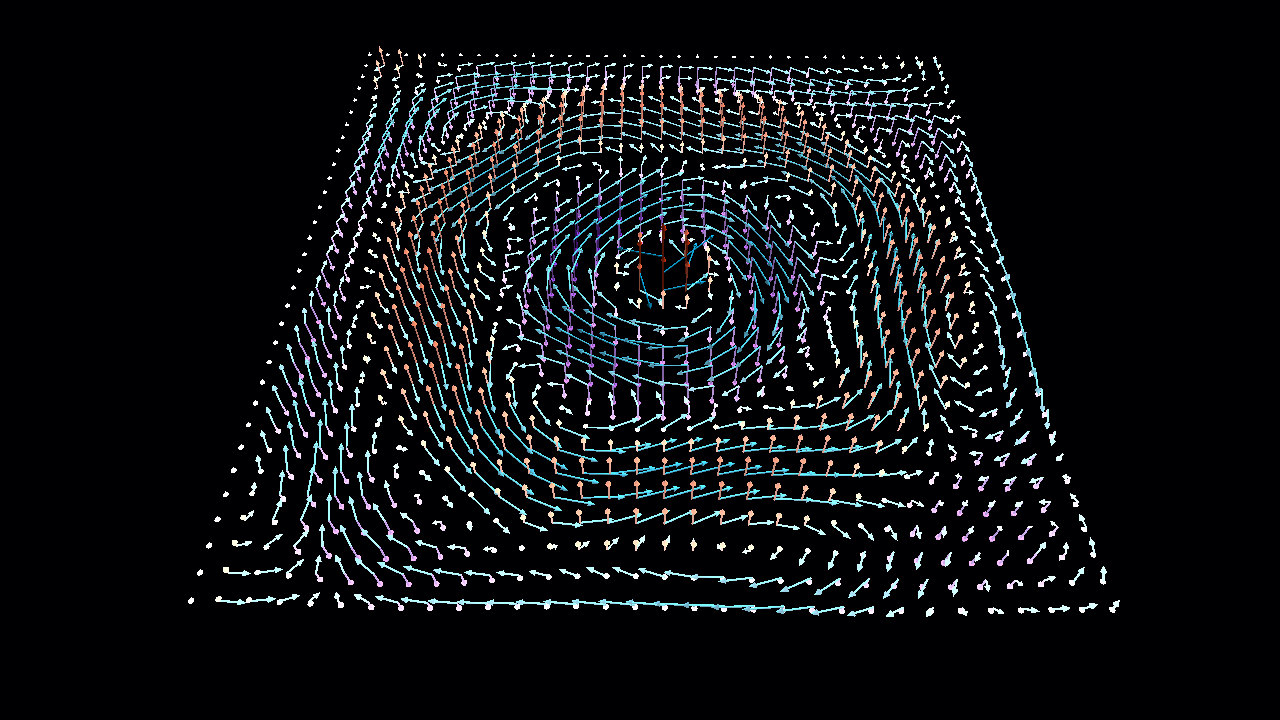
The grid size is 128x128.
An electric field defined by a sine function is forcibly applied at the origin.
The electric and magnetic fields are visualized using arrows,
with the thickness and length of the arrow shafts adjusted for visibility.
Make the following parameters adjustable via sliders:
* The amplitude and period of the sine function at the origin
* The thickness and length of the arrows
Learn Math and Physics with AI
Complex simulations can sometimes yield incorrect results.
If this happens, ask the AI to explain its algorithms.
You can also research alternative algorithms online.
You might also find better results simply by switching to a different AI model.
Working through these problems with AI is a great way to deepen your theoretical understanding.
I hope GPUSims enhances your journey into math and physics.